

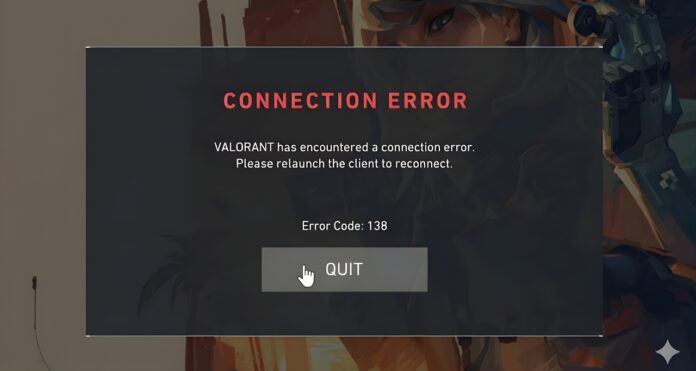
VAL 138 happens when VALORANT can’t reconnect and detects that VALORANT/Riot Vanguard is running in a virtual machine, which isn’t allowed. Fixing it generally means installing VALORANT and Riot Vanguard on a normal (non-virtualized) Windows installation.
VAN 138 error explained
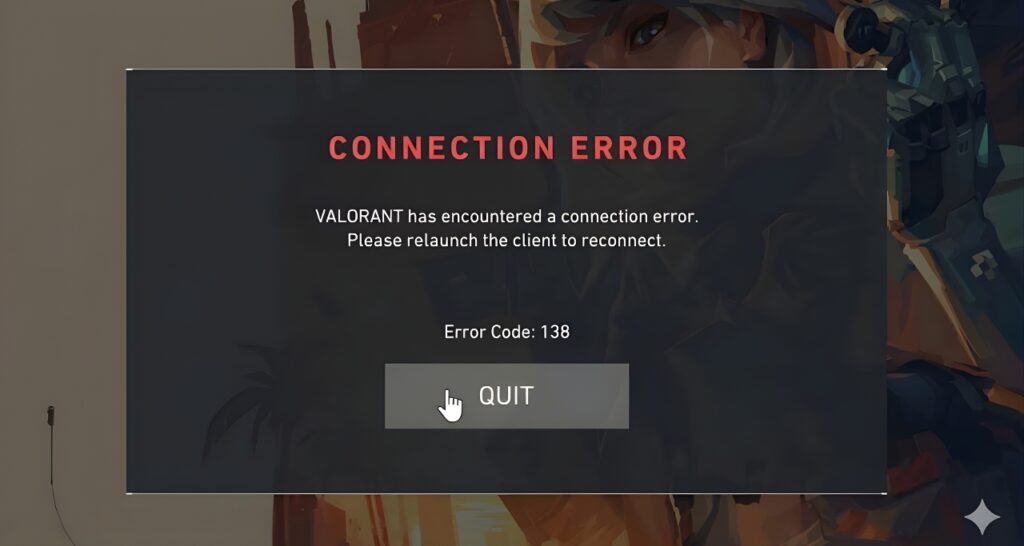
Riot lists error code 138 as: “VALORANT has encountered connection error. Please relaunch client to reconnect.” Riot also explains that this specific 138 error points to VALORANT/Riot Vanguard running from a virtual machine, and the required fix is to install both on a regular instance of Windows instead.
How to Fix VAN 138 Error
1. Launch the Game in a Windows PC
Riot’s official fix for 138 is to install VALORANT and Riot Vanguard on a standard Windows installation rather than a virtual machine. If you are using VMware/VirtualBox/Hyper-V VM or a “cloud PC” that behaves like a VM, switch to a normal Windows install on your physical machine.
2. Stop launching the game inside virtualization
VAL 138 is triggered by running VALORANT/Riot Vanguard from a virtual machine environment, so the practical fix is to play from your host (physical) Windows instead of the guest VM. If you need virtualization for work, keep it separate and launch VALORANT only from the non-VM Windows environment.
3. Reinstall
After moving to a regular Windows instance, install VALORANT and ensure Riot Vanguard installs alongside it on that same non-virtualized OS. This helps avoid a “split install” where the game is on one environment and Vanguard is tied to another.
4. Submit a Riot Support ticket
If you are definitely not using a VM and still get VAL 138, follow Riot’s direction to submit a ticket from their error-codes page so Support can review logs and environment flags.
Related Valorant errors
- VAL 128: “VALORANT has encountered connection error. Please relaunch client to reconnect,” and Riot recommends restarting the PC + Riot Client, then reinstalling Vanguard and VALORANT if it persists.
- VAL -81: “Service Start Failed,” and Riot recommends restarting PC + Riot Client, then reinstalling Vanguard and VALORANT if it persists.
- VAN 138: Riot Vanguard’s listing for VAN 138 matches the VM-related cause and points to installing on a regular Windows instance instead of a virtual one.
Conclusion
VAL 138 is primarily a “running in a virtual machine” block rather than a typical internet issue, so standard network fixes usually won’t help. Installing VALORANT and Riot Vanguard on a regular Windows installation (not a VM) is the core fix Riot provides, and a Support ticket is the next step if you’re certain no virtualization is involved.