

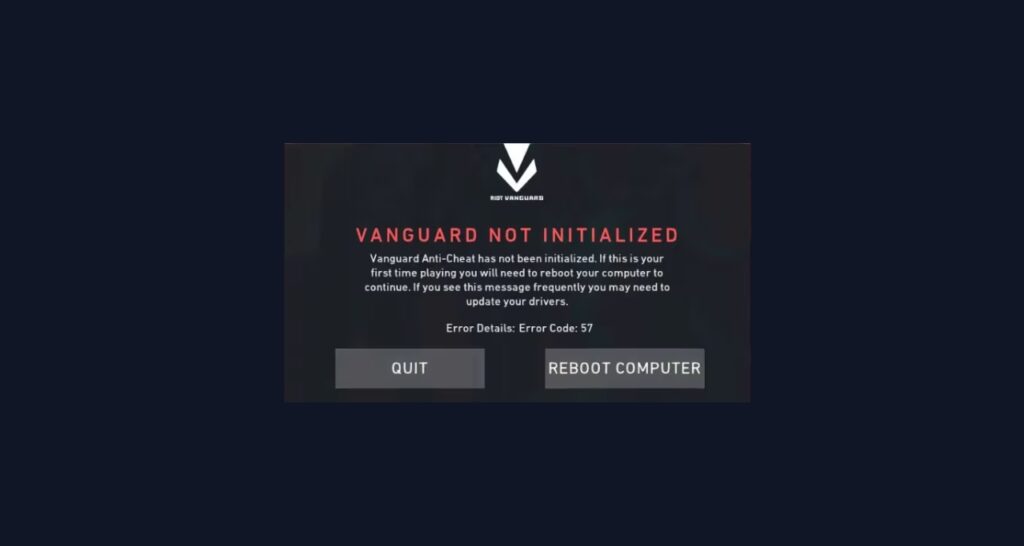
Error Code 57 in Valorant happens when Riot Vanguard, the game’s required anti-cheat system, fails to start or initialize properly. This stops you from launching the game. It’s a common issue and sometimes pops up because of missing files, background software conflicts, or outdated system settings. Good news: you can almost always fix it at home without much trouble.
What Does Valorant Error Code 57 Mean?
VAL 57 means that Riot Vanguard isn’t running, or something is blocking it from starting. This anti-cheat service is needed for Valorant to run on your computer. You’ll get this error if you or your system disabled Vanguard, if another app (like antivirus or optimization software) is getting in the way, or if the service is missing or corrupted. Old Windows versions and missing driver updates can also trip this error.
How to Fix VAL 57 in Valorant
1. Restart Valorant and Your PC
A simple restart of Valorant and if that doesn’t work completely restarting your PC is the first thing you could try.
- Completely close Valorant.
- Press Ctrl+Shift+Esc to open Task Manager and make sure all Valorant and Vanguard processes are closed.
- Restart your PC.
- Launch Valorant again to check if the error is gone.
2. Disable Conflicting Software
Apps like antivirus, VPNs, or PC optimizers can block or mess with Vanguard. Make sure to follow below steps to identify if that’s the case.
- Temporarily turn off your antivirus, VPN, or booster tools.
- Try launching Valorant again.
- If it works, set up exceptions in those apps for Valorant and Vanguard. If not, uninstall any unnecessary conflicting programs to test.
3. Reinstall Riot Vanguard
If Vanguard is corrupted or missing, a clean reinstall will usually fix it.
- Press Windows + R, type appwiz.cpl, and hit Enter.
- Find Riot Vanguard and uninstall it.
- Restart your computer.
- Launch Valorant, the game will prompt you to reinstall Vanguard.
- Follow prompts and let it finish.
4. Update System and Graphics Drivers
Outdated drivers, especially GPU drivers can cause Vanguard to fail.
- Open Device Manager from the Start menu.
- Expand “Display Adapters,” right-click your GPU, and choose “Update driver.”
- You can also visit your GPU manufacturer’s website to download the latest version.
- Update your Windows Operating System via Windows Update in Settings.
5. Run Valorant in Compatibility Mode
Sometimes running the game in an older Windows mode does the trick.
- Right-click the Valorant shortcut and choose Properties.
- Go to the Compatibility tab.
- Check “Run this program in compatibility mode for,” and pick Windows 7 or 8.
- Click OK and launch the game.
6. Set Vanguard Service to Automatic
Make sure Vanguard is set to auto-start with your computer.
- Press Windows + R, type services.msc, and press Enter.
- Find “VGC” or “Riot Vanguard” in the list.
- Double-click it, set the “Startup type” to “Automatic,” and start the service if it’s stopped.
- Restart your computer.
7. Check for Windows Updates
An outdated or unsupported system can block Vanguard.
- Go to Start > Settings > Update & Security > Windows Update.
- Check for updates and install all pending ones.
- Restart your PC.
8. Contact Riot Support
If you’ve tried everything and still get VAL 57, submit a support ticket to Riot Games describing your problem and what fixes you’ve tried. They can guide you through advanced solutions suited to your PC.
Related Errors to VAL 57
VAL 57 often appears alongside other Vanguard and startup errors, such as VAL 43 (platform connection issues), VAL 55 (repair manager errors), and even errors caused by outdated software or drivers. Most of these rely on similar fixes: restart, update, eliminate conflicts, and make sure Vanguard is running correctly.
Conclusion
Valorant Error Code 57 means Vanguard isn’t running right, but nearly all cases are fixable with PC restarts, reinstalls, or software updates. Keeping Vanguard and your system drivers updated, along with disabling any software that blocks Vanguard, will keep you in-game and error-free.