

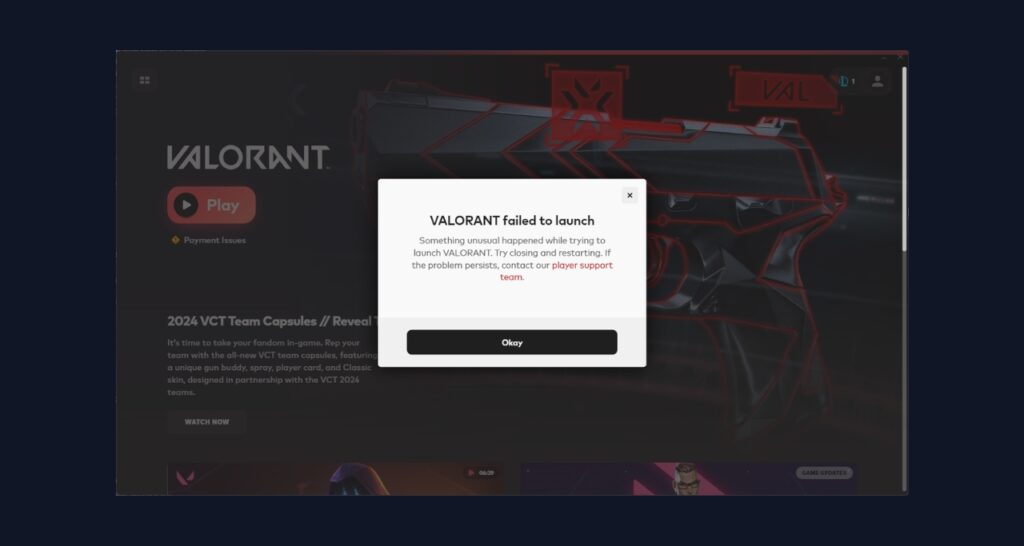
VAL 55 in Valorant is linked to the game’s repair system failing to start up. You’ll often see this code with a message about “ApplicationRepairManagerInitFailure,” which basically means Valorant couldn’t initialize its own fixer tool for bugs and problems during launch. Most of the time, this error appears because of a bad Riot Client startup, network issues, or problems with Riot Vanguard.
What Does Valorant Error Code 55 Mean?
This error means Valorant’s internal repair tool didn’t start correctly when you tried to open the game. It might be because the Riot Client didn’t launch fully, or the game is failing to reach Riot’s servers. Sometimes, server maintenance or outages can also cause it, so always check server status first. Slow or unstable internet connections are also a possible reason. Occasionally, missing or broken Vanguard anti-cheat files might trigger VAL 55 instead of other common errors like VAL 5 and VAL 45.
How to Fix Valorant Error Code 55
1. Restart the Riot Client
Restarting the Riot Client from scratch fixes this error most of the time.
- Open Task Manager (Ctrl + Shift + Esc).
- End all Riot-related processes.
- Close Task Manager.
- Restart the Riot Client and then Valorant.
2. Check Riot Server Status
Check Riot’s service status page and the Valorant Twitter to see if there’s maintenance or downtime. If there are server problems, wait until Riot fixes them before trying anything else.
3. Restart Your PC and Router
Network connectivity issues or a jammed connection can trigger VAL 55.
- Restart your PC.
- Unplug your router for 30 seconds, then plug it back in.
- Launch Valorant after everything is working again.
4. Reinstall Riot Vanguard
If restarting the client and checking servers doesn’t work, it could be a Vanguard issue.
- Close all Riot and Valorant processes in Task Manager.
- Go to Program Files > Riot Vanguard and delete the folder.
- Open Command Prompt (as Administrator) and type:
sc delete vgc
sc delete vgk - Restart your PC.
- Launch the Riot Client—it will prompt you to reinstall Vanguard.
5. Try a Clean Reinstallation (If All Else Fails)
Do this only if nothing else works:
- Uninstall Valorant and the Riot Client completely.
- Reboot your PC.
- Download and install the latest version from the Riot website.
6. Contact Riot Support
If VAL 55 keeps popping up, your issue might need a deeper look.
- Go to Riot’s support site.
- Submit a ticket and explain what you’ve tried so far.
Related Errors to VAL 55
VAL 55 shares causes with other launcher and Vanguard-related errors like VAL 45 (Vanguard restart required), VAL 57 (Vanguard not running), and VAL 5 (lost connection). Most of these can be fixed by restarting clients, network resets, or Vanguard reinstallations.
Conclusion
Error Code VAL 55 usually means Valorant’s repair tool didn’t start properly. Restarting the Riot Client is your best first move, followed by server checks and Vanguard fixes. If you’re still stuck, try a reinstall or reach out to Riot Support for help.